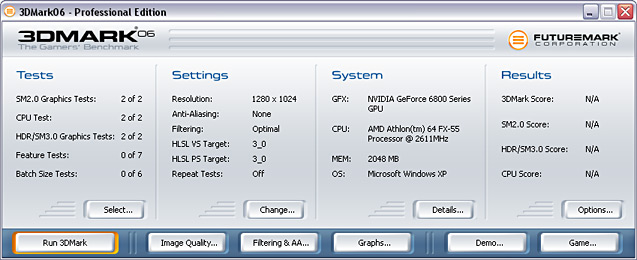

Despite being one of the most highly developed 3D benchmarks available, 3DMark06 can be used by people with any range of benchmarking experience. A single click is enough to get a 3DMark score for your system.
To start the default benchmark, simply click once on the Run 3DMark button. 3DMark06 selects all graphics tests (depending on your graphics cards shader model support) and CPU tests by default. Running the default benchmark produces a 3DMark score, SM2.0 score, HDR/SM3.0 score and a CPU score.

Once the benchmark has successfully completed, in the Advanced and Professional Editions you will be presented with a 3DMark score, SM2.0 score, HDR/SM3.0 score and a CPU score. In case any errors or problems have occured or your hardware doesn't meet the requirements of all the tests, you will not get a score. Beneath the score is the "Submit Your Results" button - clicking this once will submit your score and take you to the Online ResultBrowser (ORB) section of the Futuremark website. Here you will be able to compare your result against other PCs from around the world.

Once the benchmark has successfully completed, in the Basic Edition (Free) you are only able to view your results online. Simply click on the "View Your Results Online" button to submit your result, and to get an analysis of your system's performance.
NOTE: Please carefully read our Legal Agreement before using the Online ResultBrowser and submitting your score. For matters concerning the Internet connection to the ORB, please contact your Internet service provider.
To run the 3DMark demo, simply click once on the Demo button. Turn up the volume, sit back and enjoy the show!

